> For the complete documentation index, see [llms.txt](https://guide.plusai.com/llms.txt). Markdown versions of documentation pages are available by appending `.md` to page URLs; this page is available as [Markdown](https://guide.plusai.com/plus-ai/invite-your-team.md).
# Invite your team
Invite and manage members of your team in Plus AI to share the benefits of your subscription.
## What are teams in Plus AI
Plus AI paid features are shared across teams. If you have any paid plan, all members of your team will have access to those benefits, like unlimited presentations, advanced layouts, longer prompts, and custom themes.
In addition, your [custom branding](/ai-for-presentations/custom-branding.md), [saved context](/ai-for-presentations/generate-a-presentation/saved-context.md), and [presets](/ai-for-presentations/presets.md) are shared across your team, to help you maintain consistency across your slides and presentations.
## Invite your team
In the browser: Go to **Settings** > **Organization** or [app.plusdocs.com/settings/organization](https://app.plusdocs.com/settings/organization)
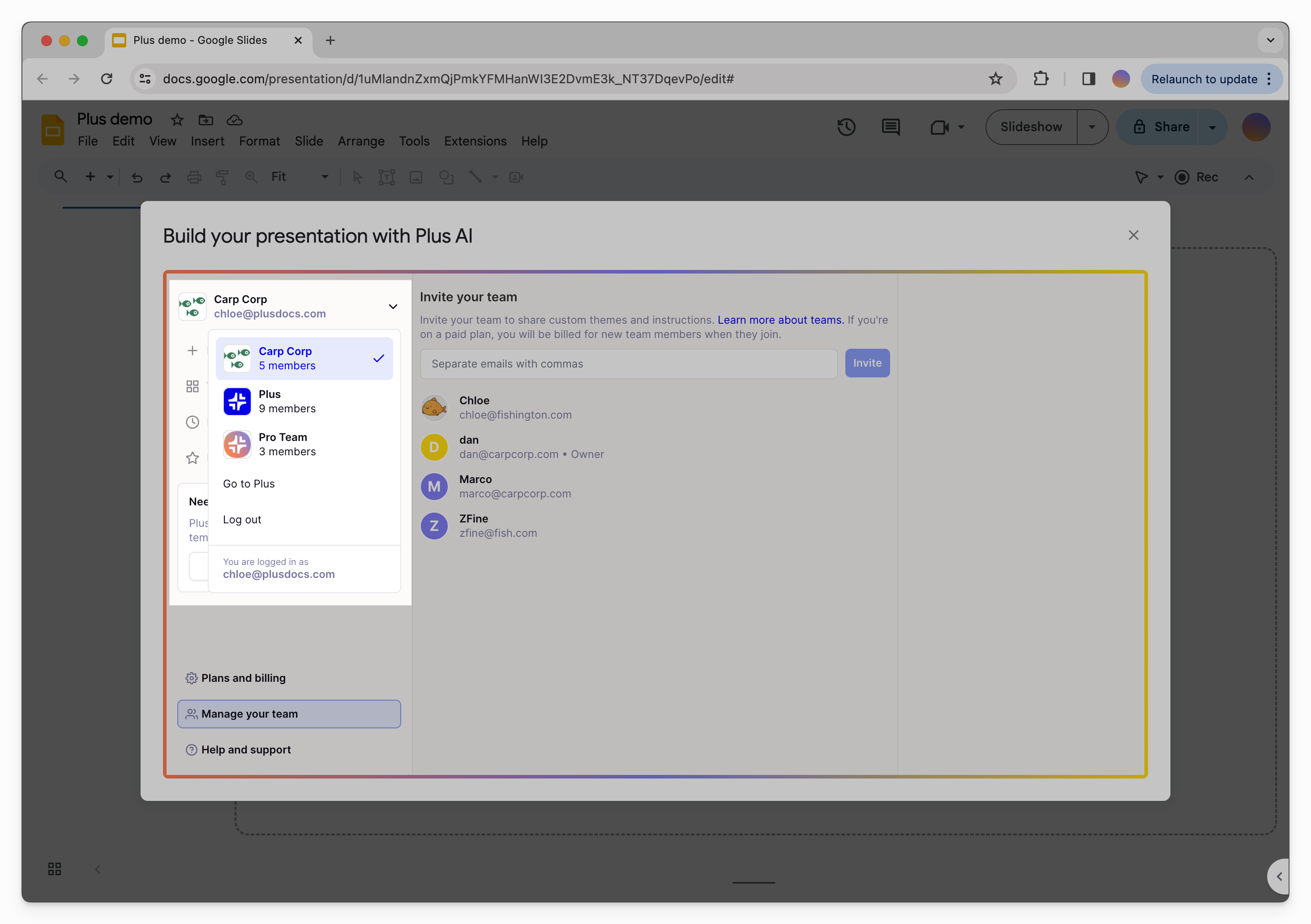
In the Google Slides or PowerPoint add-ins: Open the **New presentation** window > **Manage your team** (in the bottom left)
When you invite a teammate, they will receive an email with a link to join the team. If you're on a paid plan, you will be immediately billed for additional team members. [Learn more about plans and billing.](/plus-ai/plans-and-billing.md)
## Organization settings
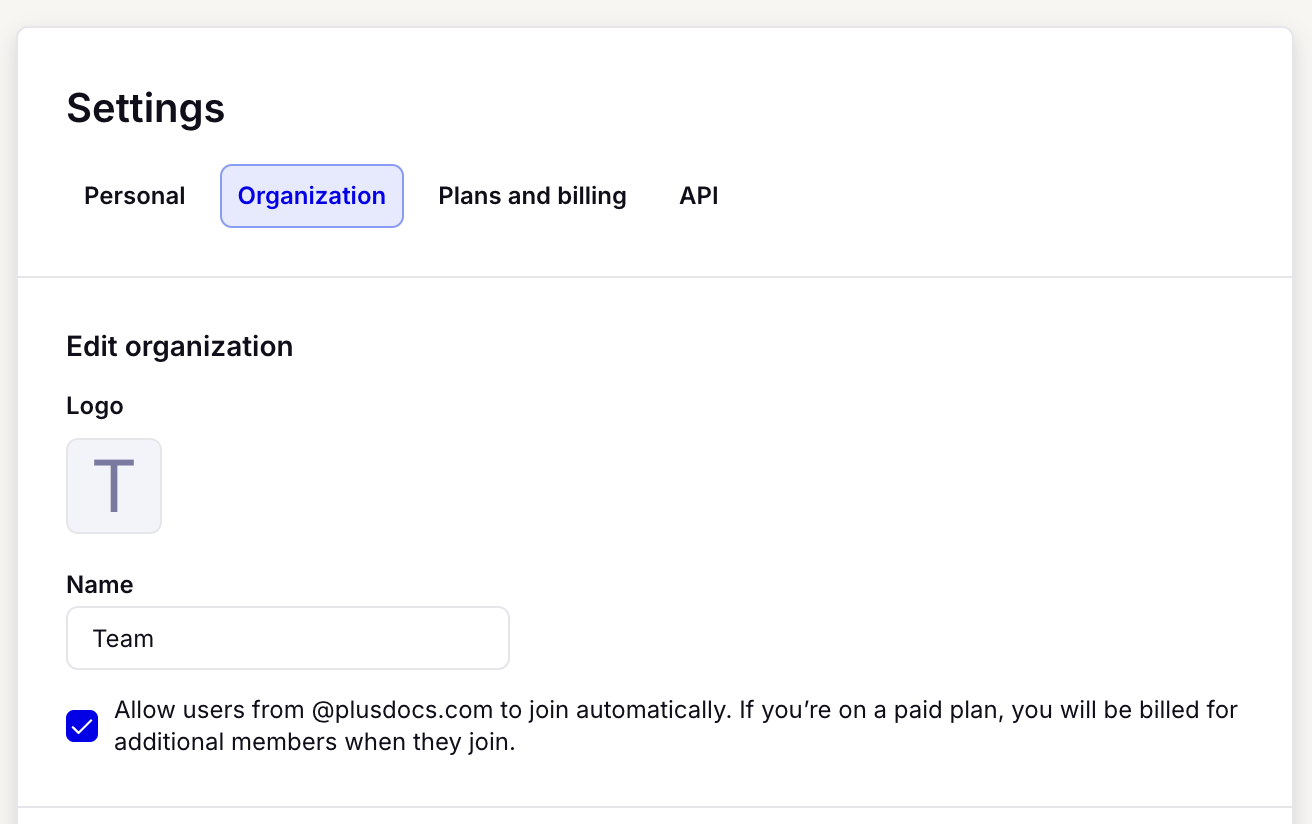
If you're the organization owner, you can give your team a name and upload a logo.
You can also allow anyone sharing your email domain to join your organization on signup. (Note that you will be [billed](/plus-ai/plans-and-billing.md) when new users join your team)
## Joining a team
When you're invited to a team in Plus AI, you should receive an email with a direct link to join.
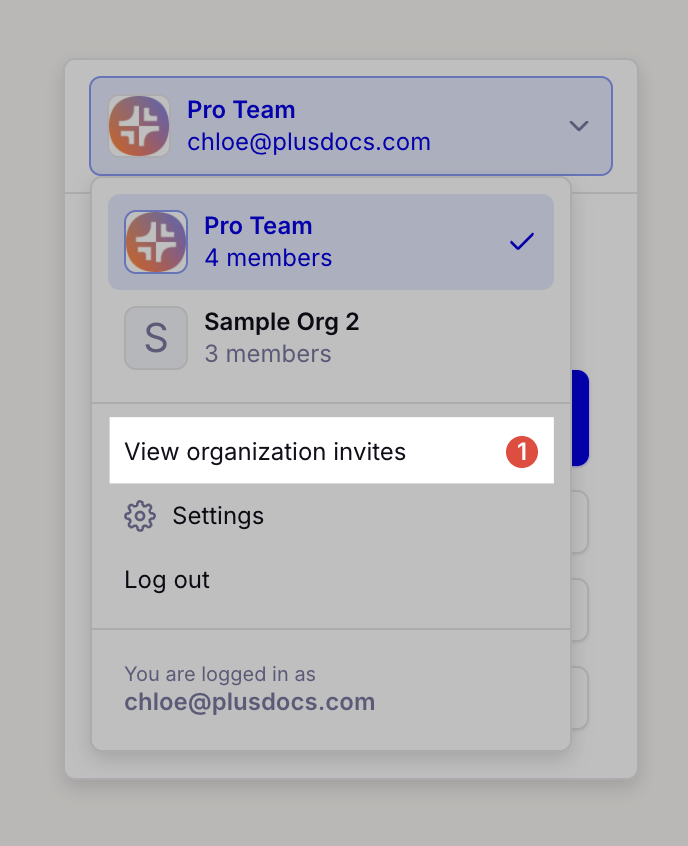
If you can't find the email, you can also see **open invitations** in the accounts menu in the add-on or here:
## What if I'm a part of multiple teams?
If you're a member of multiple teams, you can switch between them. Click on the square button next to the Plus logo. Then select the organization you want to use.
This can be useful if you (or your teammate) signed up for Plus as an individual before being invited to your team.
Switching organizations in the Plus add-on
## Organization owners
The user who created the organization is the organization owner. **Only the org owner can upgrade to a paid plan**, change plans, cancel an existing subscription.
👉 If you need to change the owner of your team, [contact us](/help/contact-us.md).
## Team permission details
#### Paid plan features
* All paid plan features are available to everyone on a team.
* Your organization owner will automatically be billed for every member of the team. [Learn more about plans and billing](/plus-ai/plans-and-billing.md)
**Plan and billing**
* Only the organization owner can upgrade, downgrade, or cancel the team's paid plan (subscription). The organization owner is also the billing admin and receives subscription invoices
* If you need to change the owner of your team, [contact us](/help/contact-us.md)
* Any team member can invite new team members
#### Custom branding
[Custom branding](/ai-for-presentations/custom-branding.md) is shared across your team
* Every team member can edit your custom brand settings
* Every team member can use your custom branding when generating new presentations and editing slides.
#### Saved context
[Saved context](/ai-for-presentations/generate-a-presentation/saved-context.md) is shared across your team
* Any team member can create or update these instructions
* Anyone can toggle saved context on or off anytime when generating new presentations
## More questions?
{% content-ref url="/pages/4f9xPe0HHKsSjo1babmp" %}
[Contact us](/help/contact-us.md)
{% endcontent-ref %}
---
# Agent Instructions
This documentation is published with GitBook. GitBook is the documentation platform designed so that both humans and AI agents can read, navigate, and reason over technical content effectively. Learn more at gitbook.com.
## Querying This Documentation
If you need additional information that is not directly available in this page, you can query the documentation dynamically by asking a question.
Perform an HTTP GET request on the current page URL with the `ask` query parameter, and the optional `goal` query parameter:
```
GET https://guide.plusai.com/plus-ai/invite-your-team.md?ask=&goal=
```
`ask` is the immediate question: it should be specific, self-contained, and written in natural language.
`goal` is optional and describes the broader end goal you are ultimately trying to accomplish on behalf of the user. GitBook uses it to tailor the answer towards what is most useful for that goal.
The response will contain a direct answer to the question and relevant excerpts and sources from the documentation.
Use this mechanism when the answer is not explicitly present in the current page, you need clarification or additional context, or you want to retrieve related documentation sections.